New to third-party mug apps? Learn how Mug Monitor works with your existing Ember mug, including free features and setup.
A 60-second connection check
Wake the mug and move close
Put the mug on its charged coaster or press its power button, then place it within a few feet of the phone. An empty or sleeping mug may not advertise continuously.
Rule out a competing connection
Temporarily turn Bluetooth off on other phones or tablets that have used the mug. A mug can be remembered by several devices, but an active connection from one device can prevent another from taking over.
Restart Bluetooth from system settings
Turn Bluetooth off, wait about 30 seconds, and turn it back on. Then reopen your mug app and try again. This clears a surprising number of stale Bluetooth sessions.
If it still will not reconnect
Close the app that is not in use
Two mug apps should not compete for the same Bluetooth connection. If you are trying Mug Monitor, fully close the official app first. If you are troubleshooting the official app, close Mug Monitor. Some mugs may still need the official app once for initial authorization or firmware updates.
Use pairing mode before using reset
Pairing mode and a factory reset are different actions. For a ceramic Ember Mug or Mug 2, hold the bottom button for roughly 6–8 seconds and release it when the LED blinks blue. Ember publishes the full ceramic mug pairing instructions. Travel Mug controls and indicators differ, so use the instructions for that model.
Forget and re-pair
On iPhone, open Settings → Bluetooth, tap the information button beside the mug, and choose Forget This Device. On Android, open Settings → Connected devices → Bluetooth, open the mug’s settings, and choose Forget or Unpair. Put the mug into pairing mode, then reconnect from the app.
Factory reset only after the simpler checks
A reset erases the mug’s pairing state, so it creates more setup work and is rarely the best first step. Ember’s ceramic-mug procedure uses a longer button hold until the LED flashes red. Follow Ember’s current re-pairing guide rather than applying ceramic-mug timing to a Travel Mug.
When it disconnects only in the background
If the mug connects while the app is open but loses updates after the screen locks, focus on phone permissions and power management:
- Allow Bluetooth or Nearby Devices access.
- Allow notifications if you want status and ready alerts.
- On Android, remove aggressive battery restrictions for the mug app.
- On iPhone, avoid force-quitting the app when you want background monitoring or Live Activities.
- Check that background monitoring is enabled and that Premium or the trial is active if the feature requires it.
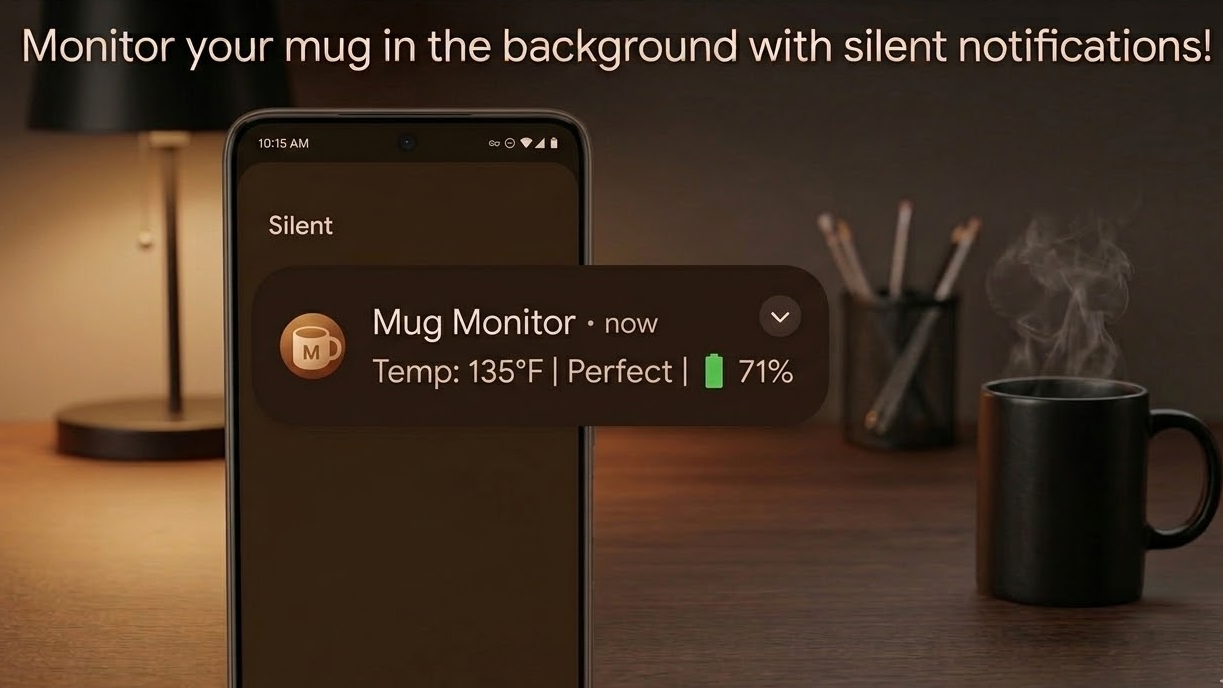
On supported Android phones, Mug Monitor can use Android’s Companion Device support to wake and attempt a reconnect when the mug appears nearby. This requires Android 12 or newer, manufacturer support, and one-time setup in Mug Monitor. It improves automatic recovery; it cannot guarantee an uninterrupted Bluetooth connection.
App options for an Ember mug
| Option | Good fit when… | Keep in mind |
|---|---|---|
| Official Ember app | You need official setup, firmware updates, account features, or manufacturer support. | Close it if another app is trying to connect to the same mug. |
| Mug Monitor | You want foreground controls, glanceable status, Ready to Drink alerts, background monitoring, or smartwatch support. | It is an independent app. Some advanced features require Premium, and hardware faults still need Ember support. |
| Mug without an app | You are happy with the mug’s stored/default target and do not need live status or controls. | You lose app-based changes, alerts, and battery information. |
Short demonstration: leave, return, reconnect
- Connect the mug in Mug Monitor and enable background monitoring.
- On a supported Android 12+ phone, complete Set up Android wake-up in Mug Monitor Settings.
- Walk out of Bluetooth range. The app will show that the connection has been lost.
- Return with the phone. When Android detects the associated mug, it can wake Mug Monitor and attempt to restore monitoring.
This test demonstrates automatic recovery, not a permanent connection. Mug power, range, phone restrictions, another connected device, and whether the mug is advertising all affect timing.
Supported devices and limits
- Android phone app: Android 10 or later. Automatic system wake-up requires Android 12 or later and compatible Companion Device support.
- Wear OS: A compatible Wear OS 3+ watch where the Mug Monitor watch app is offered by Google Play. The watch reads data through the phone.
- iPhone: Use the current App Store version on a compatible iPhone. Apple Watch display uses an iPhone Live Activity.
- Apple Watch: watchOS 11 or later for Live Activities in the Smart Stack. There is no separate Mug Monitor watch app to install.
- Mugs: Designed for compatible Ember mugs. Hardware, firmware, and regional differences can affect behavior.
Try Mug Monitor
The core Android and iPhone controls are free. New users can try Premium features for seven days.


When this is probably a hardware problem
If the mug will not power on, charge, enter pairing mode, or communicate with any compatible device, an app cannot repair it. For charging-coaster problems, unusual LED behavior, battery failures, replacement parts, or warranty questions, use official Ember support.