Mug Monitor communicates with a compatible mug over Bluetooth. You can try the free phone controls before deciding whether its extra features suit your routine. A new app cannot fix a worn battery, damaged coaster, or other hardware fault.
What does Mug Monitor offer?
For everyday use, the free app shows your current temperature and battery, lets you adjust the target, and includes temperature presets and tea timers. No Mug Monitor account is required.
Premium or the 7-day trial adds background status, Ready to Drink alerts, ready-color LED pulsing, and watch visibility:
- iPhone: Live Activities on the Lock Screen and Dynamic Island on supported phones. A paired Apple Watch can show the Live Activity in its Smart Stack.
- Android: Temperature and battery in a background notification, with a companion app for supported Wear OS watches.
- Android system wake-up: On supported phones, setup in Mug Monitor lets the system wake the app to attempt a reconnect when the mug appears nearby.
Normal connection retries and persistent background monitoring are different. The free app can connect and retry during normal use; background visibility and Android system wake-up require Premium or trial. Bluetooth range, power settings, and mug firmware still matter.
See what you can check at a glance
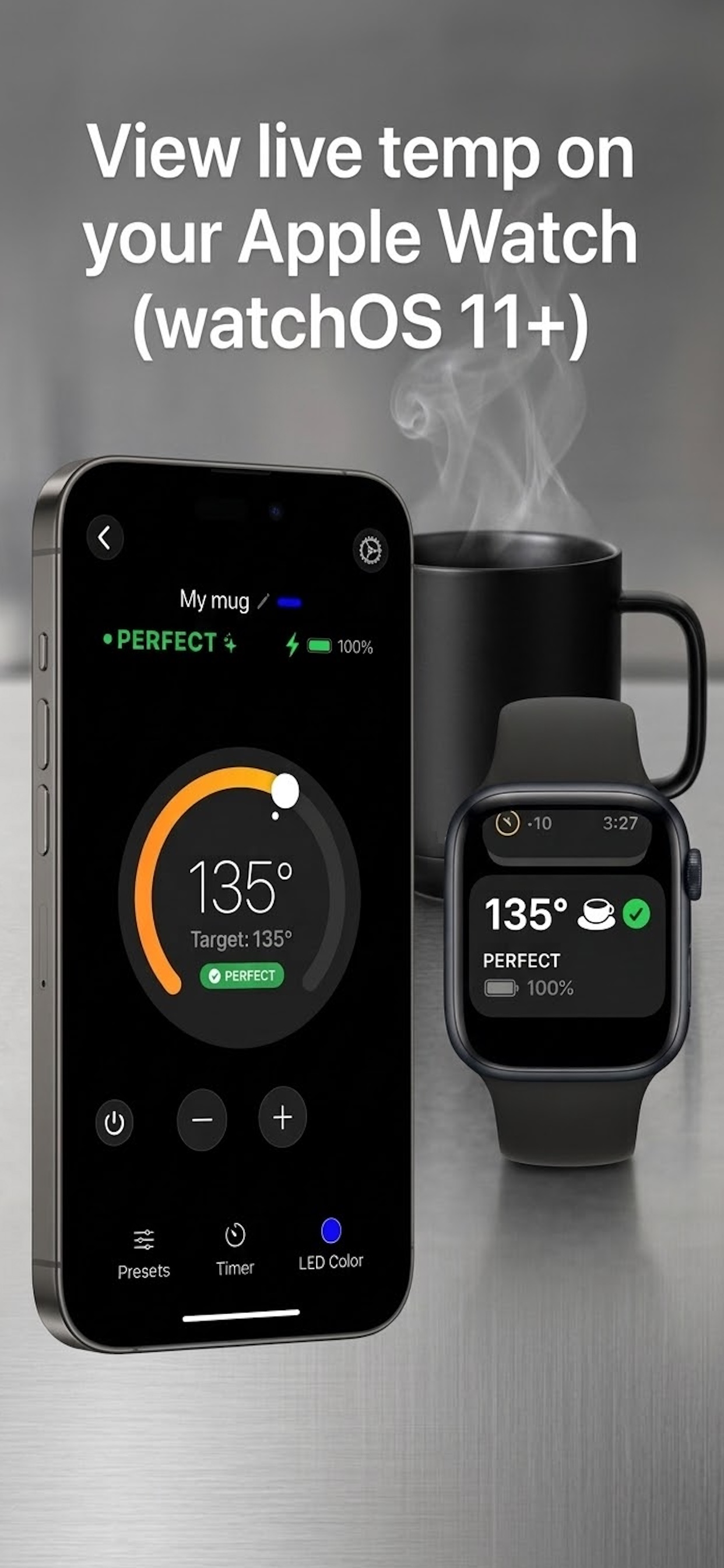
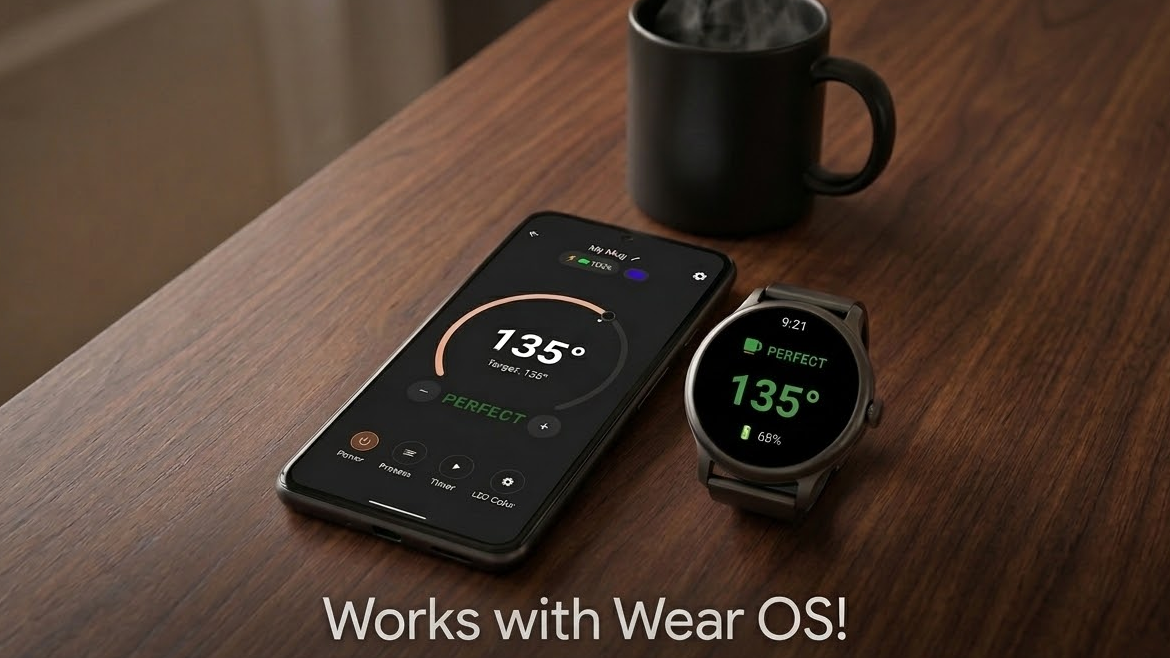
For setup instructions, use the Apple Watch and Wear OS guide.
Will it work with my mug and phone?
The iPhone app requires iOS 16.2 or later. The Android phone app requires Android 10 or later. Apple Watch display needs watchOS 11+ and a compatible paired iPhone; Wear OS support needs a compatible Wear OS 3+ watch offered the app by Google Play.
Android system wake-up reconnect additionally needs Android 12+, manufacturer support for Companion Device wake-up, and setup in the app. Both watch options rely on a connected phone.
Cybaz Solutions has confirmed Mug Monitor works with these Ember models:
- Ember Mug
- Ember Mug 2
- Ember Cup
- Ember Travel Mug 2
- Ember Tumbler
Setup and available controls can vary by model and firmware. See the device requirements table, or contact support for help with your mug.
What is free, and what costs extra?
Core controls remain free after the 7-day trial. Android Premium is a small one-time purchase, and iOS Premium is a small annual subscription. See current pricing in the app.
See the Free and Premium comparison before choosing. An expired trial does not restart when you install an update.
Do I still need the official Ember app?
The official app does not need to run alongside Mug Monitor for everyday use. Keep it available for firmware updates or initial authorization on mugs that need it. Mug Monitor does not provide firmware updates, hardware repairs, or warranty service.
If the apps compete for the connection, close the one you are not using. Also check whether another phone or tablet is already connected to the mug.
How to try Mug Monitor
- Install the free phone app. Use the App Store for iPhone or Google Play for Android. Charge your mug, wake it, and keep it close to the phone.
- Allow Bluetooth access. Close the official app and disconnect any other phone holding the mug connection. Open Mug Monitor and connect your mug.
- Check the basics. Confirm that temperature and battery update, then try the target-temperature control. If the mug is not found, follow the connection troubleshooting guide before attempting a factory reset.
- Try the extras if useful. With Premium trial access, enable background monitoring and notifications for status and alerts. Follow the watch guide if you want wrist updates.

Want to switch back?
Disconnect the mug in Mug Monitor and close the app, then open Ember’s app and reconnect. If needed, follow the pairing instructions for your exact model. Trying an alternative app does not require a factory reset as a first step.
Get help choosing or connecting
For app questions, email support@cybazsolutions.com with your mug model, phone model, OS version, and what you want to do. You can also read the iPhone FAQ or Android FAQ.
For charging, battery, replacement parts, and warranty help, contact official Ember support.