New to third-party mug apps? Learn how Mug Monitor works with your existing Ember mug, including free features and setup.
Apple Watch: use the iPhone Live Activity
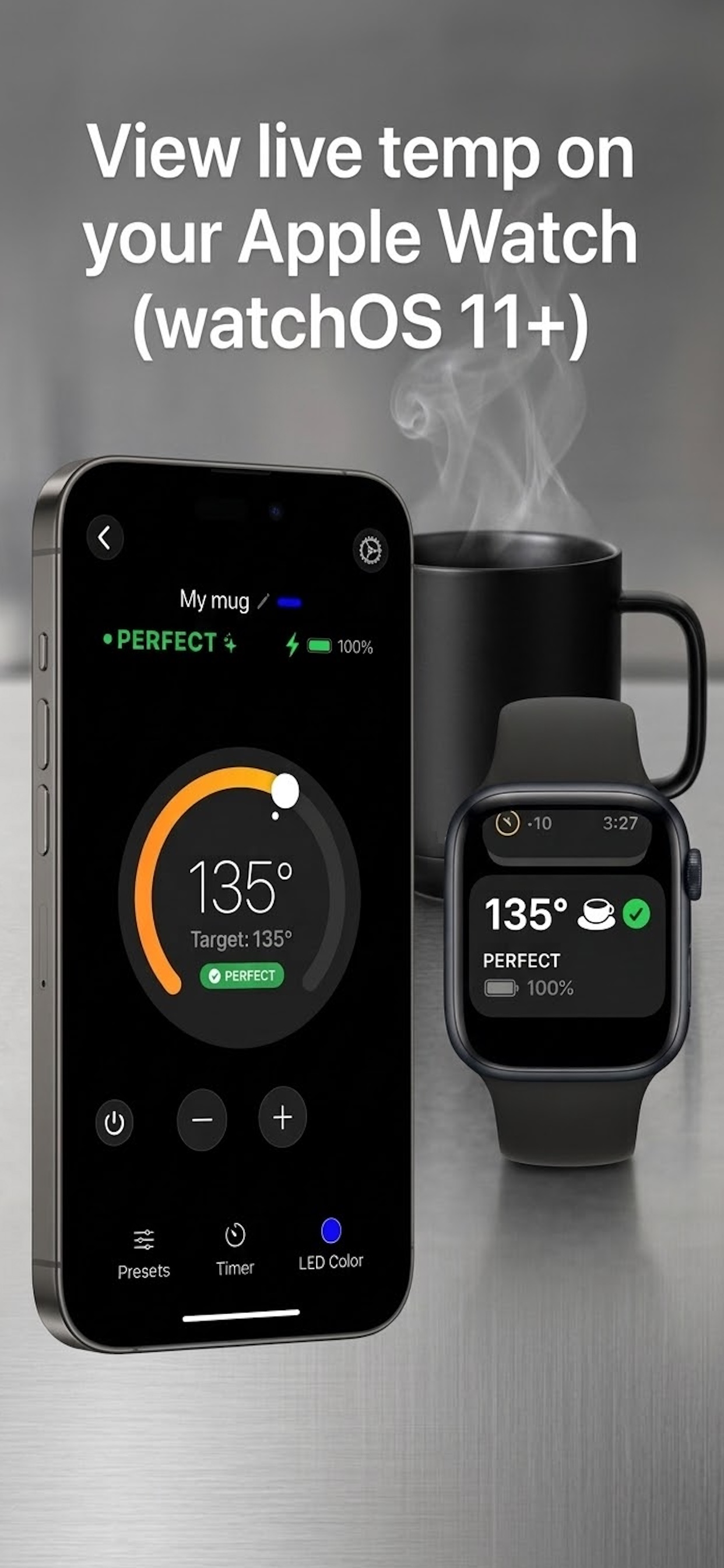
Mug Monitor’s Apple Watch experience appears in the Smart Stack on watchOS 11 or later. Your iPhone remains the device connected to the mug.
Install and connect on iPhone
Download Mug Monitor, allow Bluetooth access, and connect your compatible mug. Start the Premium trial or use Premium, then enable background monitoring in Mug Monitor Settings.
Confirm the Live Activity on iPhone
Start monitoring, then leave the app. Check the iPhone Lock Screen or Dynamic Island on a supported iPhone. If the Live Activity is updating there, the phone side is working.
Open the Smart Stack on Apple Watch
From the watch face, turn the Digital Crown upward or swipe up. The Mug Monitor Live Activity should appear near the top of the Smart Stack while active.
If the Apple Watch card is missing
- Verify the Mug Monitor Live Activity is visible and updating on the iPhone first.
- Keep the Apple Watch connected to that iPhone.
- On the watch, open Settings → Smart Stack → Live Activities and enable Allow Live Activities.
- Make sure the watch runs watchOS 11 or later.
- Allow notifications and Live Activities for Mug Monitor on the iPhone.
- Open Mug Monitor again if iOS ended the previous monitoring session.
Wear OS: install the companion watch app
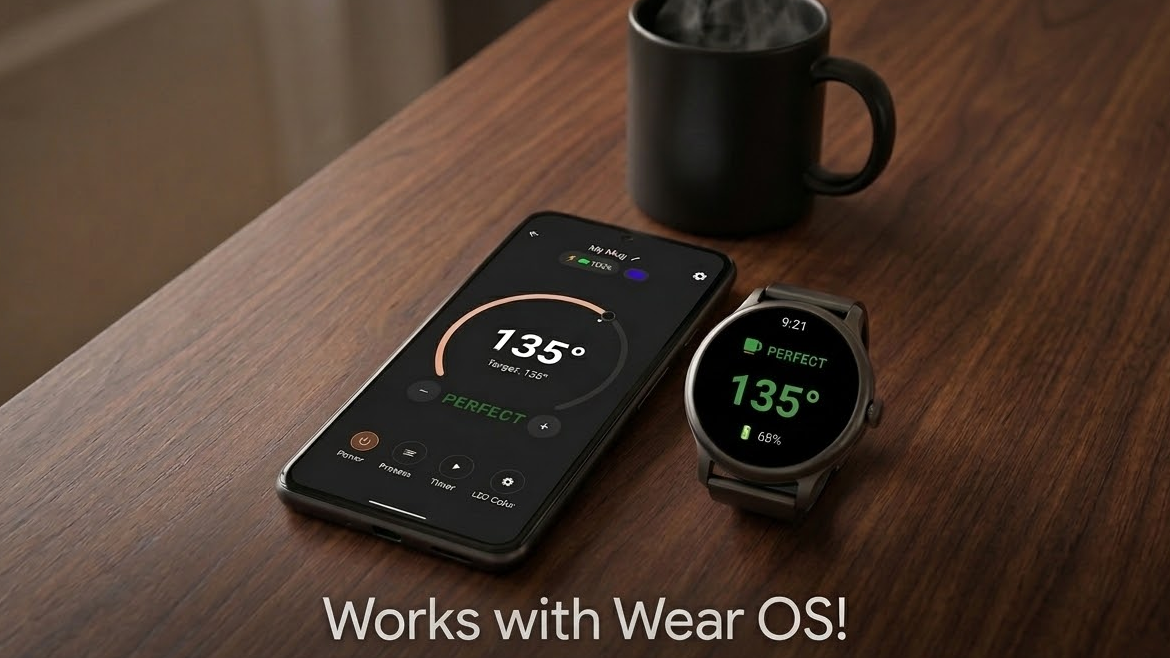
On Android, Mug Monitor has a separate Wear OS app. The phone still owns the Bluetooth connection to the mug; the watch app displays the data supplied by the phone.
Connect the Android phone
Install Mug Monitor from Google Play, connect the mug, and enable Background Monitoring and Wear OS in Settings. Wear OS support requires Premium or an active trial.
Install Mug Monitor on the watch
Open Google Play on the watch and find Mug Monitor under Apps on your phone, or search for it directly. You can also choose the watch from the Install device picker in Google Play on your phone.
Open the watch app
Keep the watch paired with the Android phone and open Mug Monitor on the watch. Once the phone is receiving current mug data, the watch should show the live temperature, state, and battery.
If Wear OS shows stale or no data
- Open Mug Monitor on the phone and confirm that the mug is connected and updating.
- Make sure Background Monitoring and Wear OS is enabled.
- Confirm the phone and watch use the expected Google account and remain connected.
- Update Mug Monitor on both devices.
- Remove aggressive battery restrictions from Mug Monitor on the phone.
- If another phone is connected to the mug, disconnect it before retrying.
Short demonstration: coffee to wrist
- Fill the connected mug and set a target temperature in Mug Monitor.
- Lock the phone and wait while the drink heats or cools.
- Open the Apple Watch Smart Stack or the Mug Monitor Wear OS app.
- Watch the displayed temperature move toward the target, then confirm the state changes to Perfect.
The watch reflects data received by the phone. If the phone loses its mug connection, the watch cannot create a separate one.
Supported devices
| Setup | Requirement | How it works |
|---|---|---|
| Apple Watch | Compatible iPhone, Apple Watch with watchOS 11+, Premium or trial | The iPhone connects to the mug and publishes a Live Activity to the watch Smart Stack. |
| Wear OS | Android 10+ phone, compatible Wear OS 3+ watch offered the app by Google Play, Premium or trial | The Android phone connects to the mug and relays status to the installed watch app. |
| Phone only | Compatible iPhone or Android phone | Core foreground monitoring and controls remain available without a watch. |
Store availability, phone manufacturers, OS versions, mug firmware, and regional support can affect compatibility. Automatic background reconnect is an Android phone feature; it requires Android 12 or later plus compatible Companion Device support.
Get Mug Monitor
Install on your phone first. Premium smartwatch features are included in the seven-day trial for new users.

Need more detail? See the iPhone and Apple Watch FAQ or the Android and Wear OS FAQ.